# FDC by hand
> Learn how to use FDC without the help of scripts.
> For the complete documentation index, see [llms.txt](/llms.txt). Markdown versions of documentation pages are available by appending `.md` to the page URL.
Source: https://dev.flare.network/fdc/guides/fdc-by-hand
In this guide, we will demonstrate how [FDC workflow](https://dev.flare.network/fdc/overview) can be performed almost entirely without the use of any script. The purpose of this guide is to familiarize the reader with the FDC workflow and introduce them to tooling surrounding FDC. This is **not** how the FDC is intended to be used. Nonetheless, the tools described in this guide may prove useful when debugging the actual code.
## Request data[](#request-data "Direct link to Request data")
In this guide, we will check whether the string `rPT1Sjq2YGrBMTttX4GZHjKu9dyfzbpAYe` is a valid XRPL testnet address. This is an example of the `AddressValidity` attestation request. We chose it for demonstration purposes because it requires a single input parameter, but the same process would work for any of the FDC [attestation types](https://dev.flare.network/fdc/attestation-types).
## Preparing the request[](#preparing-the-request "Direct link to Preparing the request")
The FDC accepts requests as byte strings, encoded in a special way. These can be produced manually, but an easier way to do it is through a verifier server. A verifier server checks the validity of input data and returns an `abiEncodedRequest` that can be passed on to the FDC.
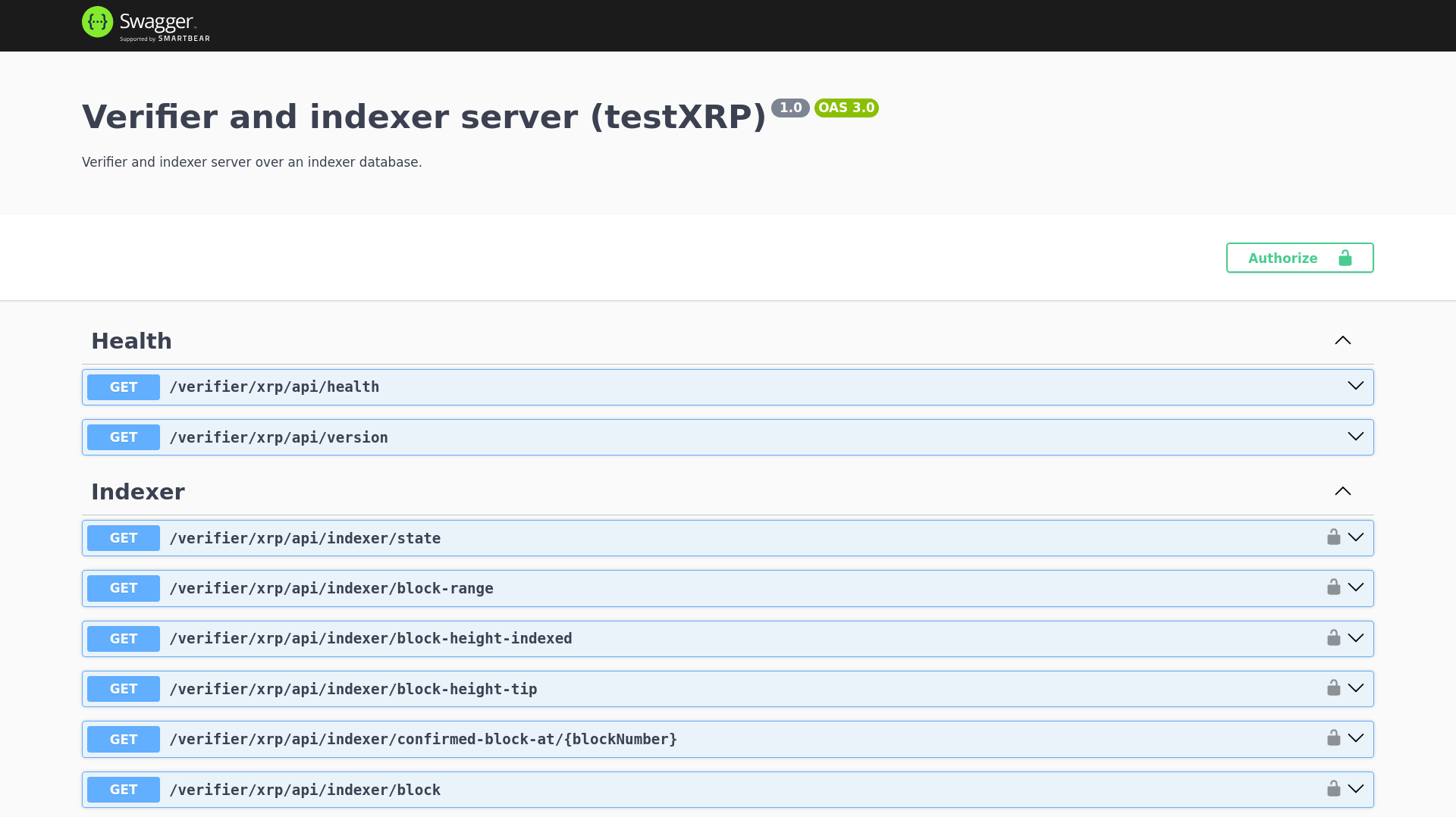
In this guide, we will use the Flare-hosted verifier server. Its interactive documentation is available at [the address](https://fdc-verifiers-testnet.flare.network/verifier/xrp/api-doc#/).
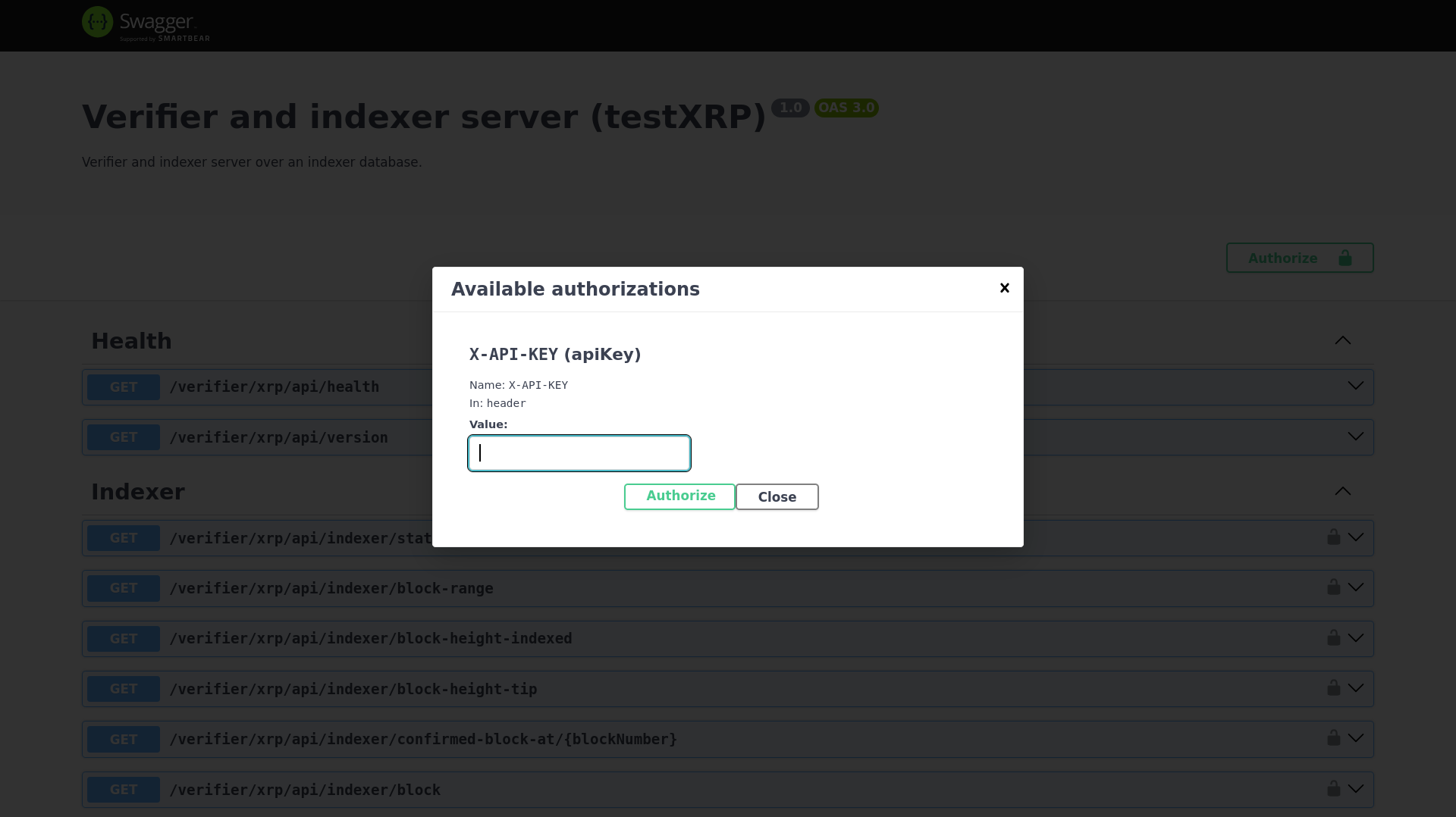
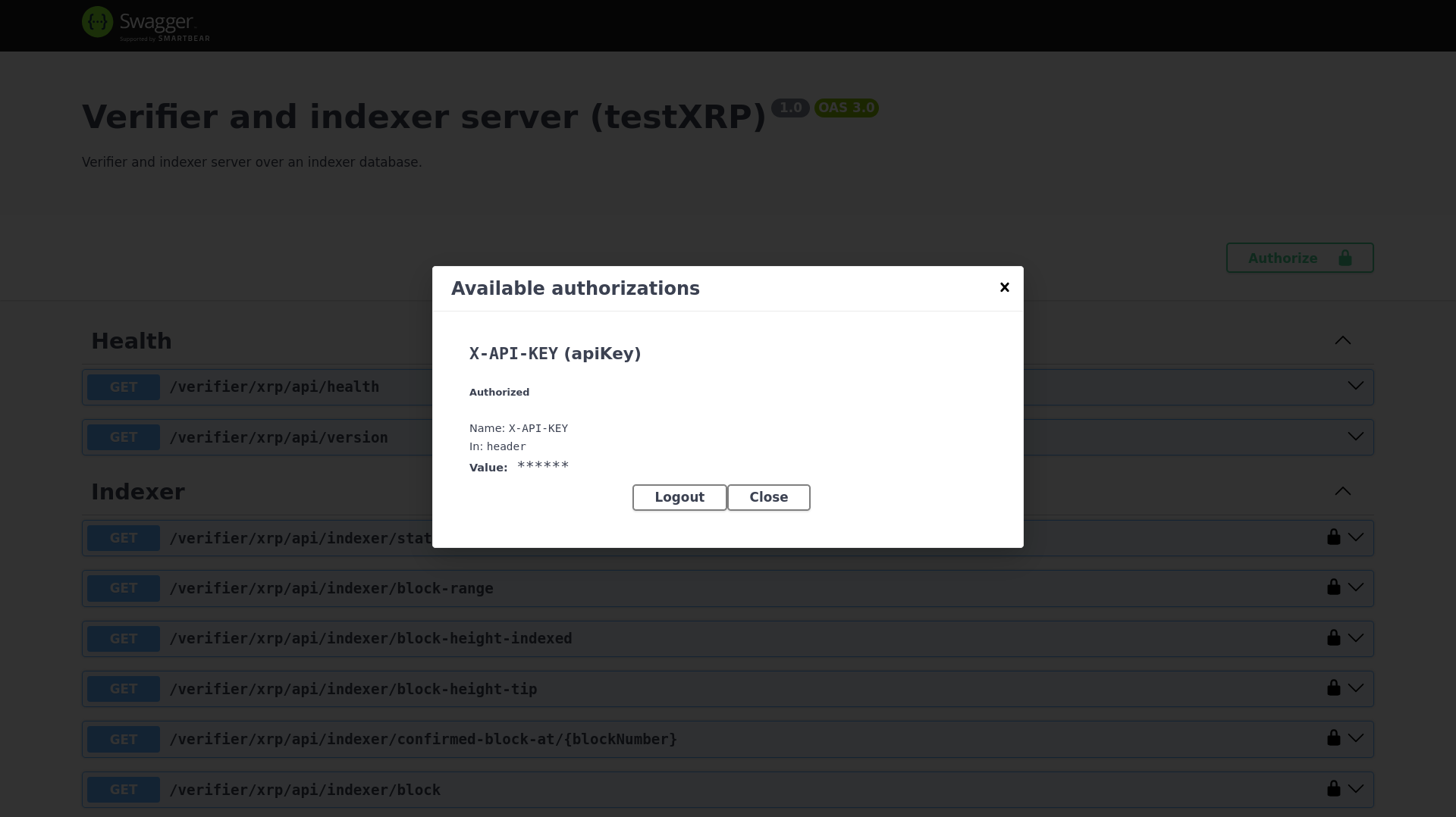
The interface requires authentication; the key `00000000-0000-0000-0000-000000000000` can be used. To authenticate, click `Authorize` in the top right corner, and input the above key.
Once authenticated, scroll down to the **AddressValidity** section, and expand the `/verifier/xrp/AddressValidity/prepareRequest` item. Click on the `Try it out` button in the upper right corner of the expanded card, and a `Request body` field will appear.
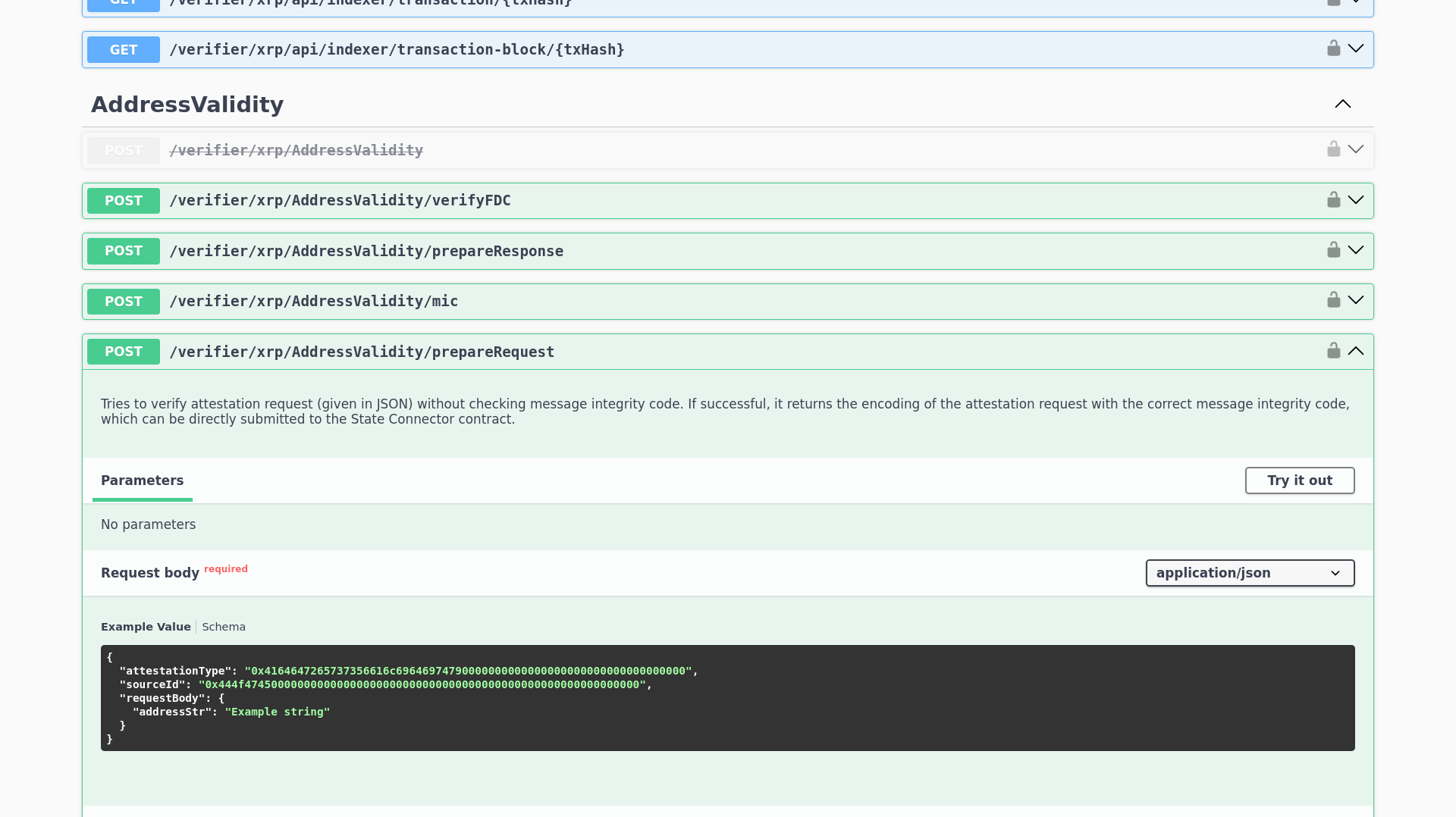
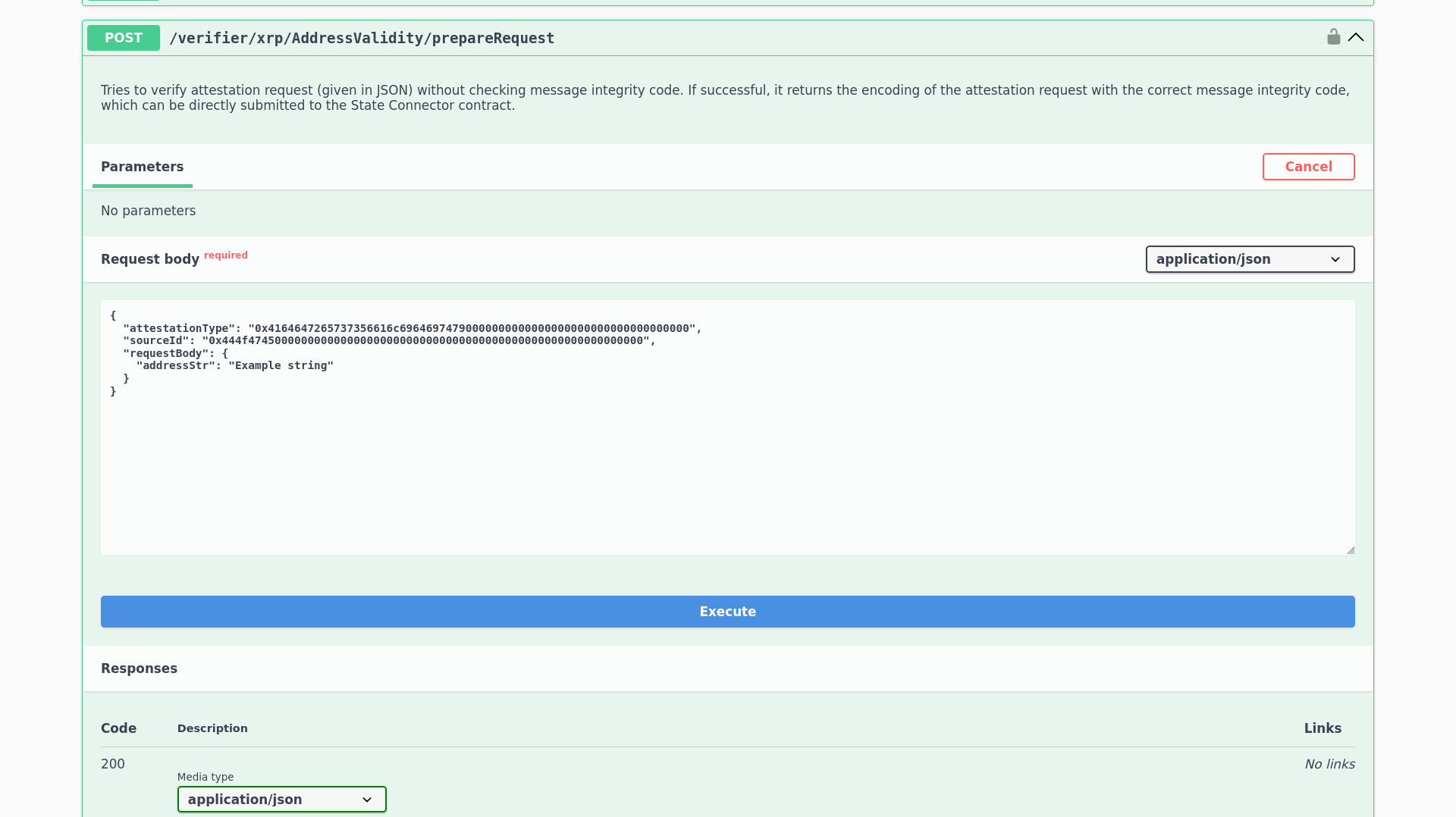
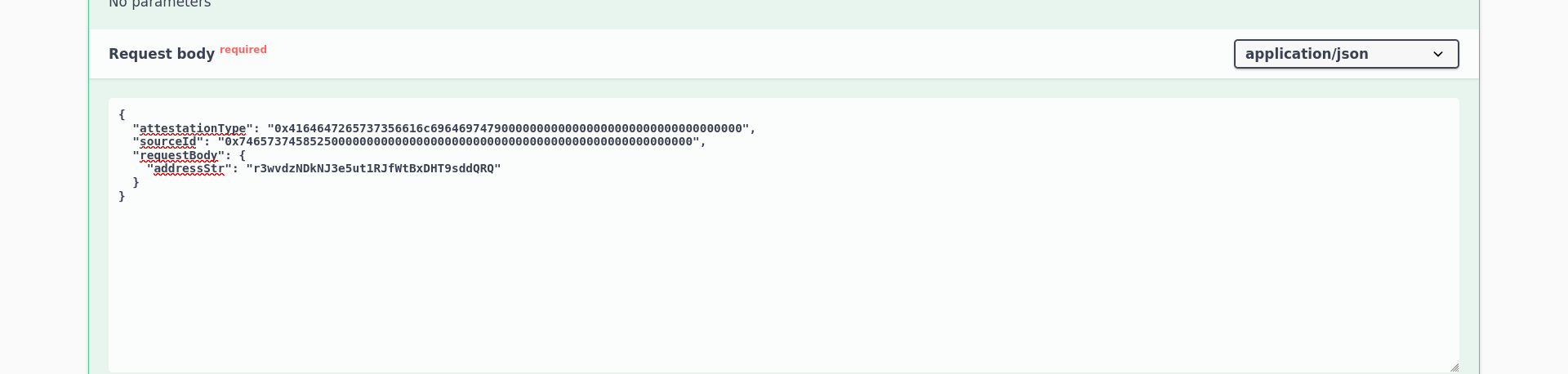
Replace the `addressStr` field value with the above address `rPT1Sjq2YGrBMTttX4GZHjKu9dyfzbpAYe`, and ensure that the form matches:
Request body
```
{ "attestationType": "0x4164647265737356616c69646974790000000000000000000000000000000000", "sourceId": "0x7465737458525000000000000000000000000000000000000000000000000000", "requestBody": { "addressStr": "r3wvdzNDkNJ3e5ut1RJfWtBxDHT9sddQRQ" }}
```
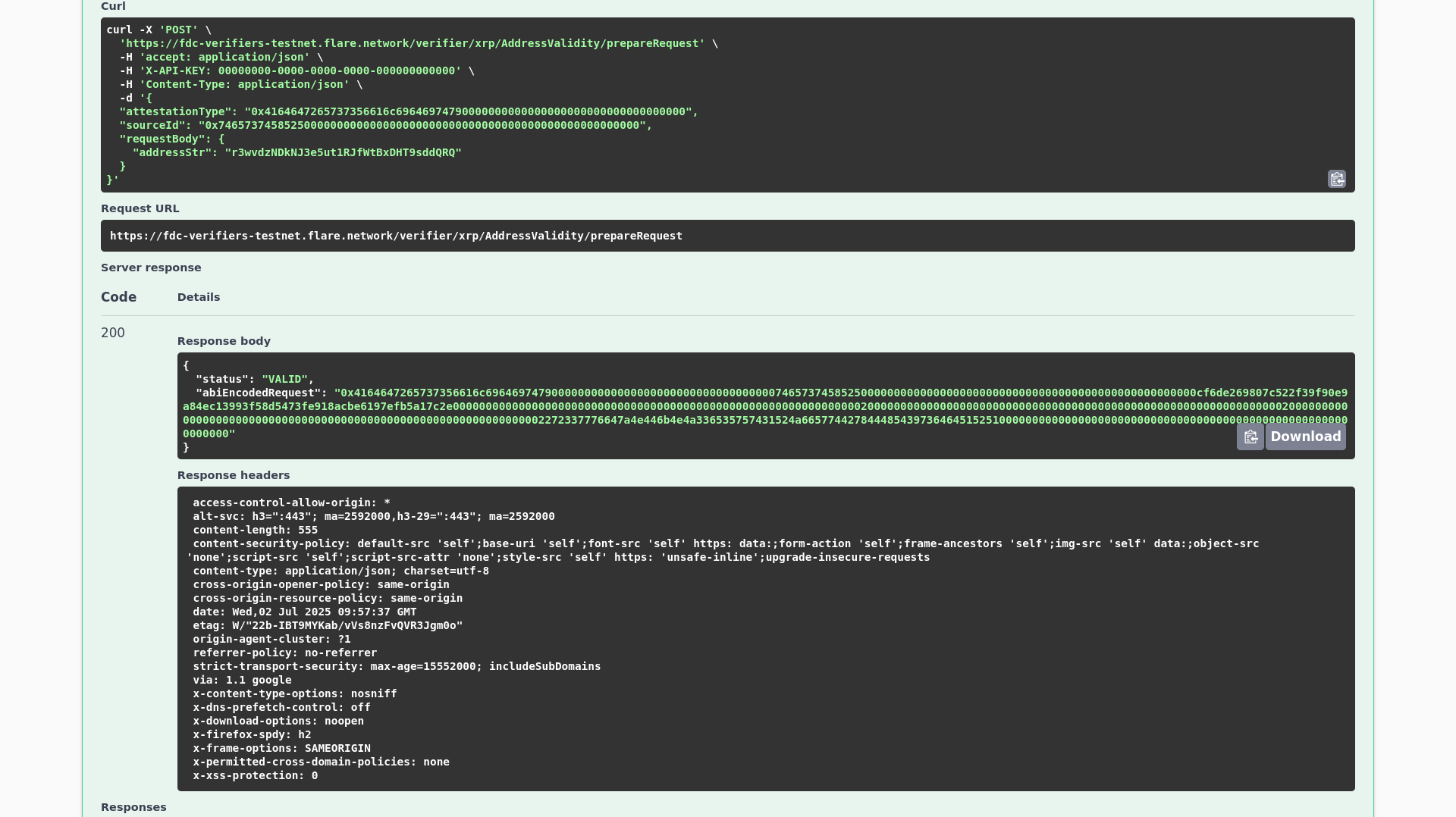
Then click `Execute`. The `abiEncodedRequest` will appear under the `Response body` section below, along with the request status which should be `VALID`.
Response body
```
{ "status": "VALID", "abiEncodedRequest": "0x4164647265737356616c696469747900000000000000000000000000000000007465737458525000000000000000000000000000000000000000000000000000cf6de269807c522f39f90e9a84ec13993f58d5473fe918acbe6197efb5a17c2e00000000000000000000000000000000000000000000000000000000000000200000000000000000000000000000000000000000000000000000000000000020000000000000000000000000000000000000000000000000000000000000002272337776647a4e446b4e4a336535757431524a665774427844485439736464515251000000000000000000000000000000000000000000000000000000000000"}
```
There are two additional values within the request body that we have not yet properly explained. They are the UTF8 hex-encoded strings of `AddressValidity` and `testXRP` respectively, zero-padded to 32 bytes. These will be different for each attestation type and source. The full list of values is available below.
Interactive documentation for all attestation types, and the corresponding values for the attestationType and sourceId fields.
Interactive documentation for all attestation types, and the corresponding values for the `attestationType` and `sourceId` fields.
- [AddressValidity](https://dev.flare.network/fdc/attestation-types/address-validity)
- [testBTC](https://fdc-verifiers-testnet.flare.network/verifier/btc_testnet4/api-doc#/)
- [testXRP](https://fdc-verifiers-testnet.flare.network/verifier/xrp/api-doc#/)
- [testDOGE](https://fdc-verifiers-testnet.flare.network/verifier/doge/api-doc#/)
- [BTC](https://fdc-verifiers-mainnet.flare.network/verifier/btc/api-doc#/)
- [XRP](https://fdc-verifiers-mainnet.flare.network/verifier/xrp/api-doc#/)
- [DOGE](https://fdc-verifiers-mainnet.flare.network/verifier/doge/api-doc#/)
- [EVMTransaction](https://dev.flare.network/fdc/attestation-types/evm-transaction)
Input the appropriate value into the encoder bellow.
### To Hex Converter
Encoded string:**—**
## Submitting the request[](#submitting-the-request "Direct link to Submitting the request")
We submit the attestation request to the FDC through the `FdcHub` contract. It is one of the official Flare contracts, and it is deployed on each of the Flare chains. We will submit the attestation request to the `FdcHub` contract on Coston2. We can use [Flare Explorer](https://coston2-explorer.flare.network/address/0x48aC463d7975828989331F4De43341627b9c5f1D).
First, we must navigate to the `Contract` tab on the explorer, and then to [Write contract](https://coston2-explorer.flare.network/address/0x48aC463d7975828989331F4De43341627b9c5f1D?tab=write_contract). We can then open the `requestAttestation` function widget. Here we input the `abiEncodedRequest` value that we received from the verifier server, as well as the fee that needs to be paid to the contract.
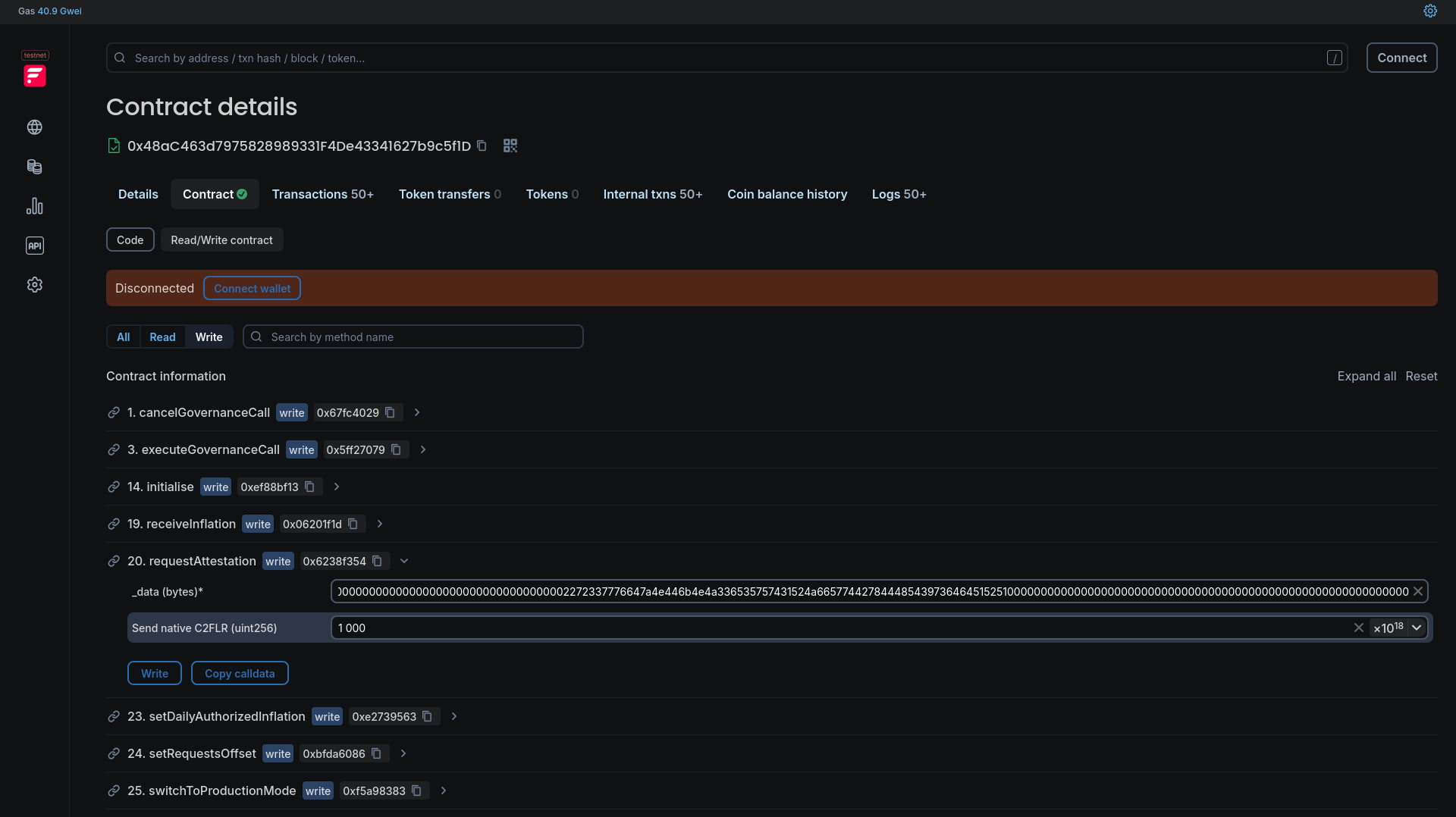
The request fee can be queried from the `FdcRequestFeeConfigurations` contract, through its [`getRequestFee` function](https://coston2-explorer.flare.network/address/0x191a1282Ac700edE65c5B0AaF313BAcC3eA7fC7e?tab=read_contract). The input parameter for this function is the `abiEncodedRequest` from the verifier server.
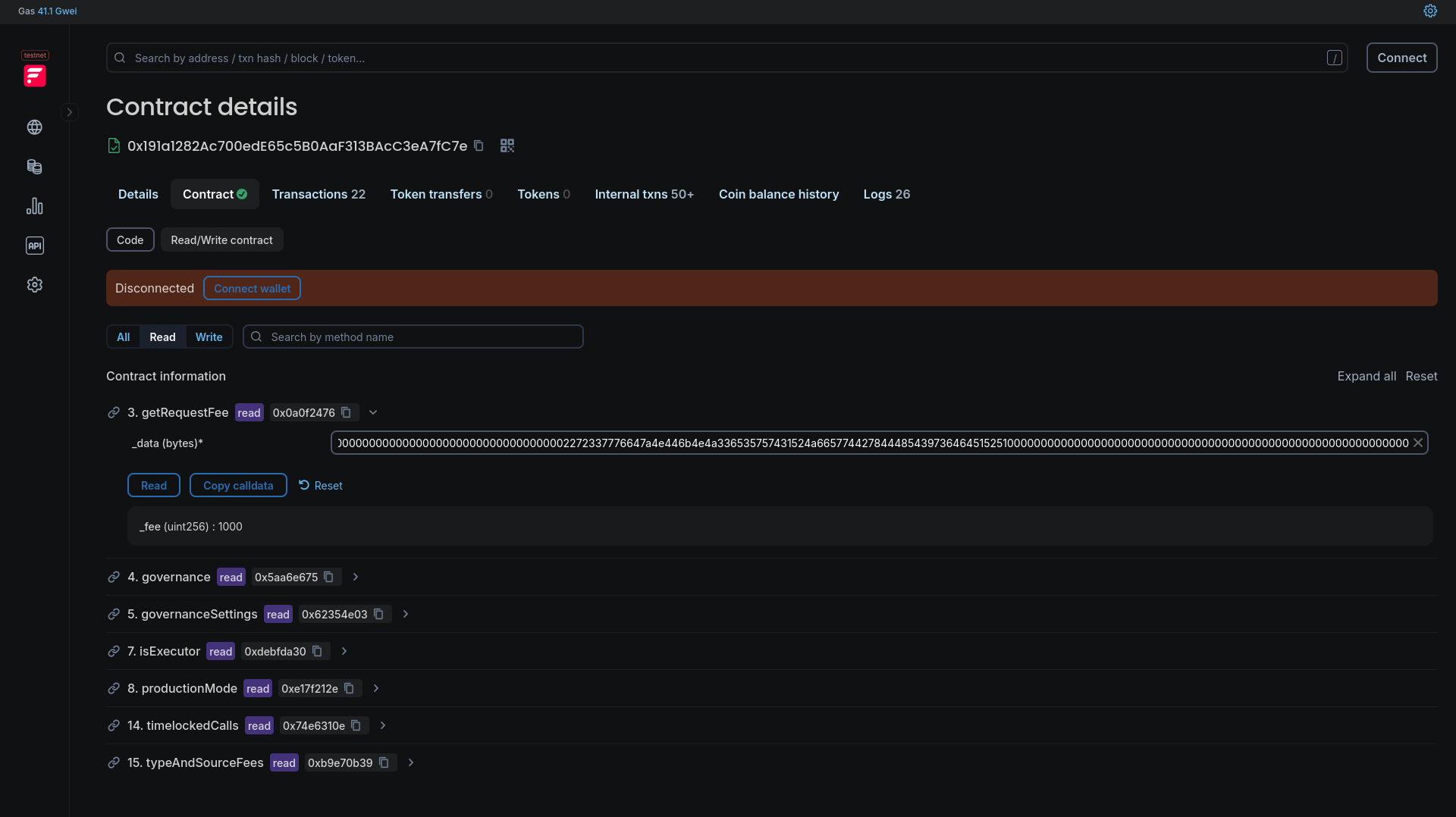
To execute the `requestAttestation` call, we need to connect the wallet. We input the `abiEncodedRequest` value, and the amount returned by the `getRequestFee` function.
After the transaction has been executed successfully, we need to open it up in the explorer. We should remember its block number for later.
Links to FdcHub and FdcRequestFeeConfigurations contracts on all Flare chains.
Links to `FdcHub` and `FdcRequestFeeConfigurations` contracts on all Flare chains.
### FdcHub[](#fdchub "Direct link to FdcHub")
- Coston
- [Flare Explorer](https://coston-explorer.flare.network/address/0x1c78A073E3BD2aCa4cc327d55FB0cD4f0549B55b)
- Coston2
- [Flare Explorer](https://coston2-explorer.flare.network/address/0x48aC463d7975828989331F4De43341627b9c5f1D)
- Songbird
- [Flare Explorer](https://songbird-explorer.flare.network/address/0xCfD4669a505A70c2cE85db8A1c1d14BcDE5a1a06)
- Flare
- [Flare Explorer](https://flare-explorer.flare.network/address/0xc25c749DC27Efb1864Cb3DADa8845B7687eB2d44)
### FdcRequestFeeConfigurations[](#fdcrequestfeeconfigurations "Direct link to FdcRequestFeeConfigurations")
- Coston
- [Flare Explorer](https://coston-explorer.flare.network/address/0x2bBfb46aC3A71A6725699004B8a8fE4C928E7108)
- Coston2
- [Flare Explorer](https://coston2-explorer.flare.network/address/0x191a1282Ac700edE65c5B0AaF313BAcC3eA7fC7e)
- Songbird
- [Flare Explorer](https://songbird-explorer.flare.network/address/0x8998a3b85350aA4CA5f55cD80ab1f7C9C0ddf02C)
- Flare
- [Flare Explorer](https://flare-explorer.flare.network/address/0x259852Ae6d5085bDc0650D3887825f7b76F0c4fe)
## Waiting for the voting round to finalize[](#waiting-for-the-voting-round-to-finalize "Direct link to Waiting for the voting round to finalize")
Before we can retrieve the proof and data, we must wait for the voting round in which the request was made to be finalized. To check whether the round has been finalized, we need to know the block in which the attestation request transaction was made; or more precisely, we need the timestamp of that block.
We can calculate the voting round ID from the transaction timestamp using the following formula.
votingRoundId\=transactionTimestamp−firsVotingRoundStartTsvotingEpochDurationSeconds\\text{votingRoundId} = \\frac{\\text{transactionTimestamp} - \\text{firsVotingRoundStartTs}}{\\text{votingEpochDurationSeconds}}votingRoundId\=votingEpochDurationSecondstransactionTimestamp−firsVotingRoundStartTs
Here, the `transactionTimestamp` represents the timestamp of the transaction in which we submitted the attestation request. The other two values are:
firsVotingRoundStartTs\=1658430000votingEpochDurationSeconds\=90\\text{firsVotingRoundStartTs} = 1658430000 \\qquad \\text{votingEpochDurationSeconds} = 90firsVotingRoundStartTs\=1658430000votingEpochDurationSeconds\=90
The following form calculates the round ID for you.
### Voting Round ID Calculator
Round ID: **—**
Once we know the voting round ID, we can go to the `Finalizations` tab of the [Coston2 Systems Explorer](https://coston2-systems-explorer.flare.rocks/finalizations). When the round has been finalized, its ID will appear on the list.
Links to all System Explorers
Links to all System Explorers
- [Coston](https://coston-systems-explorer.flare.rocks/finalizations)
- [Coston2](https://coston2-systems-explorer.flare.rocks/finalizations)
- [Songbird](https://songbird-systems-explorer.flare.rocks/finalizations)
- [Flare](https://flare-systems-explorer.flare.rocks/finalizations)
## Preparing the proof request[](#preparing-the-proof-request "Direct link to Preparing the proof request")
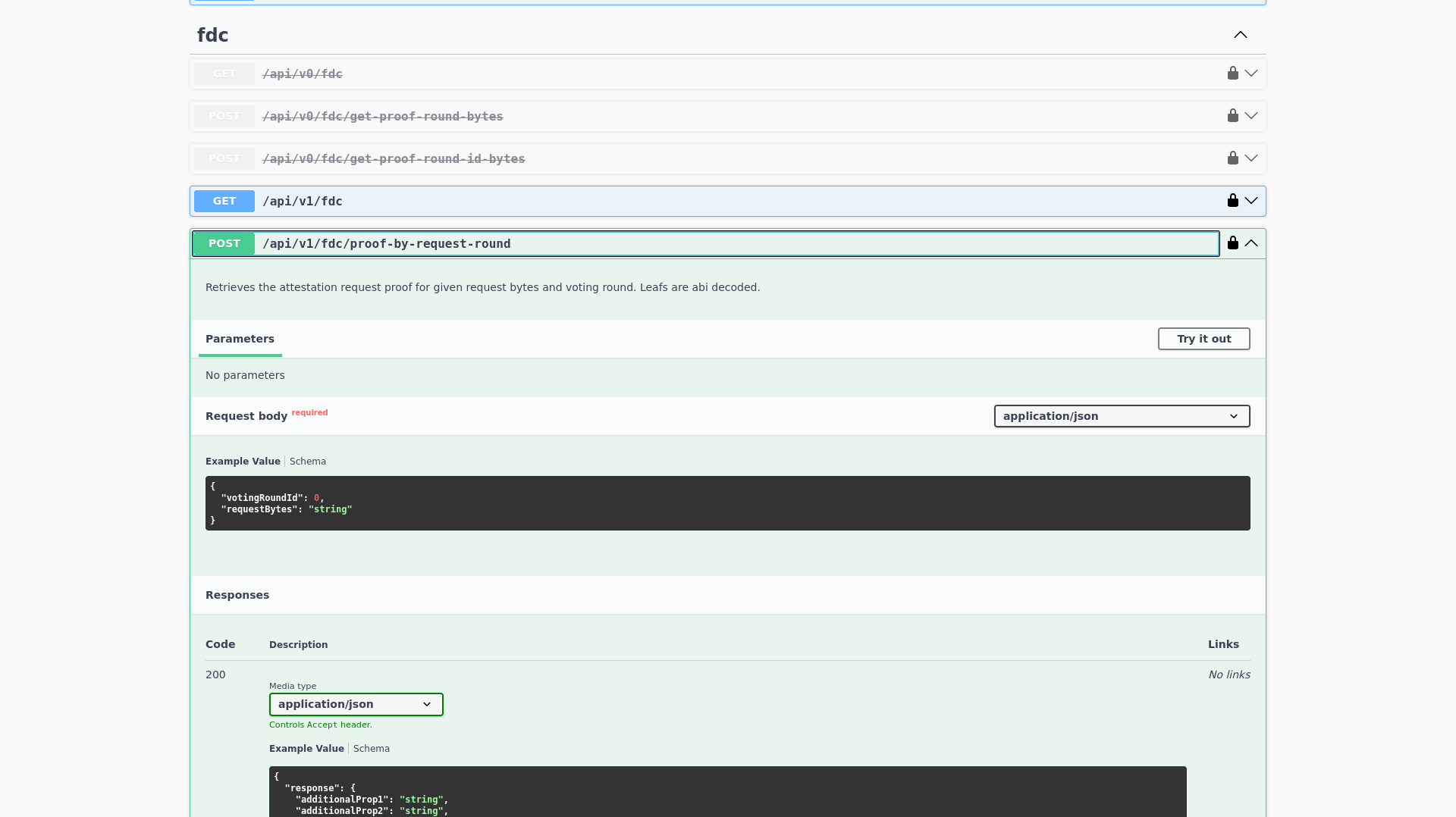
Once the round has been finalized, we can prepare the proof request using the [Flare Data Availability Client](https://ctn2-data-availability.flare.network/api-doc#/) interactive documentation. As in the previous step, we first need to authenticate using the same API key, `00000000-0000-0000-0000-000000000000`. We can then expand the `/api/v1/fdc/proof-by-request-round` widget, and click `Try it out`.
 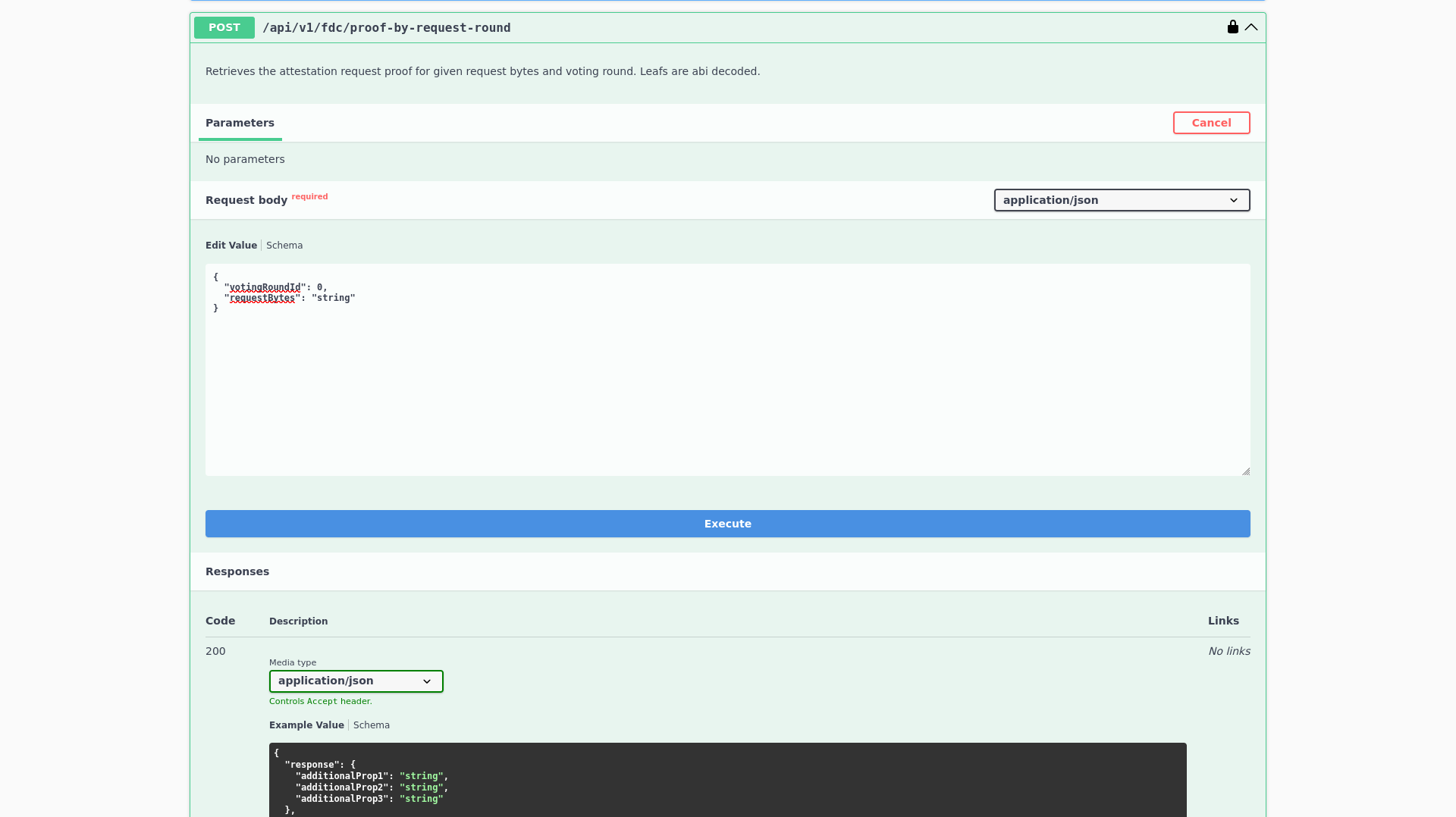
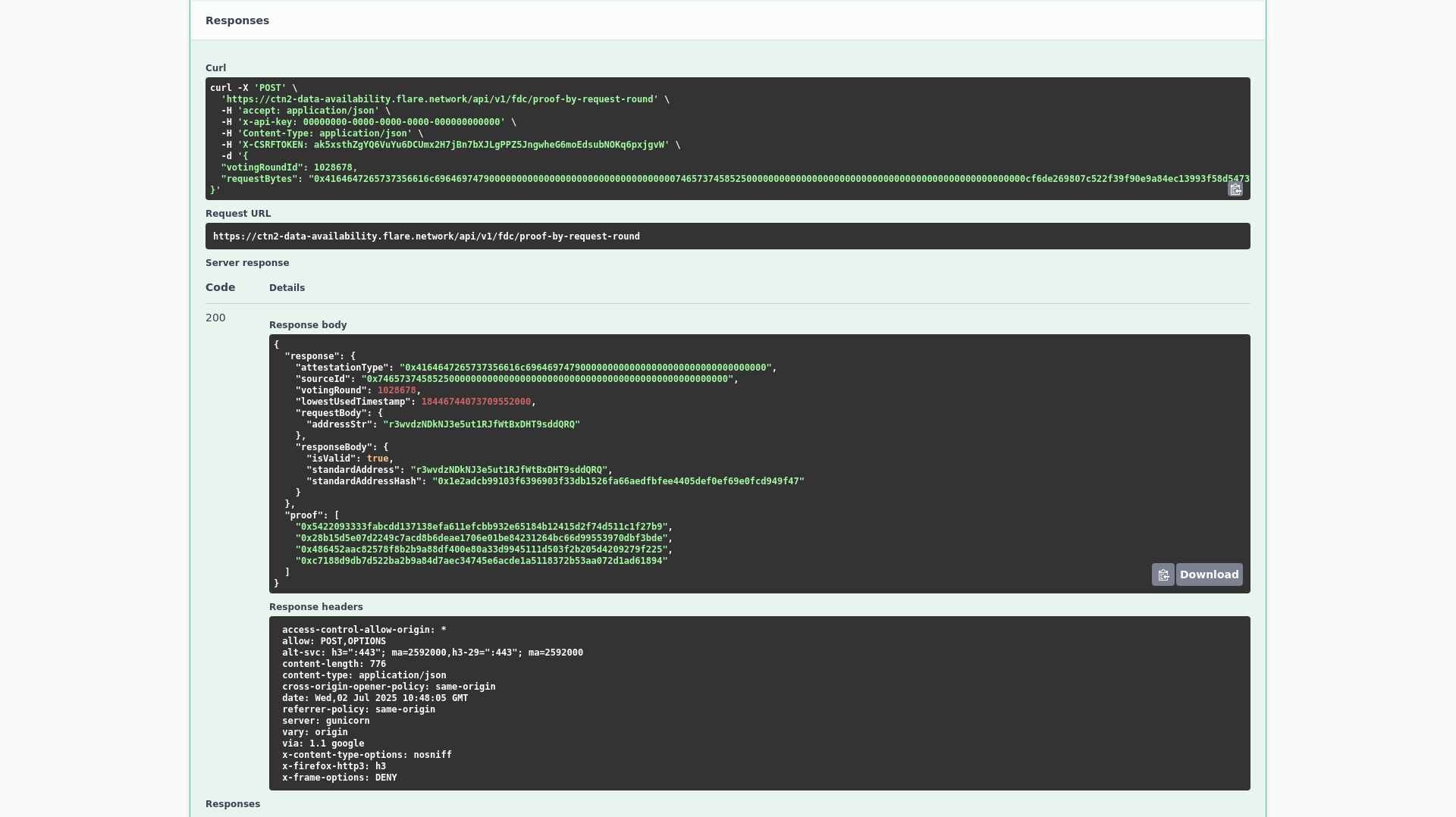
We input the voting round ID of our request under the `votingRoundId` field, and the `abiEncodedRequest` under the `requestBytes` field. Then we click on the `Execute` button. The proof response will appear under the `Response body` section.
Response body
```
{ "response": { "attestationType": "0x4164647265737356616c69646974790000000000000000000000000000000000", "sourceId": "0x7465737458525000000000000000000000000000000000000000000000000000", "votingRound": 1028678, "lowestUsedTimestamp": 18446744073709552000, "requestBody": { "addressStr": "r3wvdzNDkNJ3e5ut1RJfWtBxDHT9sddQRQ" }, "responseBody": { "isValid": true, "standardAddress": "r3wvdzNDkNJ3e5ut1RJfWtBxDHT9sddQRQ", "standardAddressHash": "0x1e2adcb99103f6396903f33db1526fa66aedfbfee4405def0ef69e0fcd949f47" } }, "proof": [ "0x5422093333fabcdd137138efa611efcbb932e65184b12415d2f74d511c1f27b9", "0x28b15d5e07d2249c7acd8b6deae1706e01be84231264bc66d99553970dbf3bde", "0x486452aac82578f8b2b9a88df400e80a33d9945111d503f2b205d4209279f225", "0xc7188d9db7d522ba2b9a84d7aec34745e6acde1a5118372b53aa072d1ad61894" ]}
```
The Data Availability Client informs us that the address is, indeed, a valid XRPL address. But the above response is not entirely correct; the timestamp is off by `385`. This is a JavaScript rounding error. To get the right response, we need to use the `curl` command in a terminal.
The `curl` command is displayed as the first part of the `Responses` section. In this case, it is:
```
curl -X 'POST' \ 'https://ctn2-data-availability.flare.network/api/v1/fdc/proof-by-request-round' \ -H 'accept: application/json' \ -H 'x-api-key: 00000000-0000-0000-0000-000000000000' \ -H 'Content-Type: application/json' \ -H 'X-CSRFTOKEN: rYJ04UxDuekdzYgChGXRIfQI904VD8qK2UtiBwZ1uMLlkAEwPgNrxvCLsNS5PdYX' \ -d '{ "votingRoundId": 1028678, "requestBytes": "0x4164647265737356616c696469747900000000000000000000000000000000007465737458525000000000000000000000000000000000000000000000000000cf6de269807c522f39f90e9a84ec13993f58d5473fe918acbe6197efb5a17c2e00000000000000000000000000000000000000000000000000000000000000200000000000000000000000000000000000000000000000000000000000000020000000000000000000000000000000000000000000000000000000000000002272337776647a4e446b4e4a336535757431524a665774427844485439736464515251000000000000000000000000000000000000000000000000000000000000"}'
```
The output of the `curl` command is then:
```
{ "response": { "attestationType": "0x4164647265737356616c69646974790000000000000000000000000000000000", "sourceId": "0x7465737458525000000000000000000000000000000000000000000000000000", "votingRound": 1028678, "lowestUsedTimestamp": 18446744073709551615, "requestBody": { "addressStr": "r3wvdzNDkNJ3e5ut1RJfWtBxDHT9sddQRQ" }, "responseBody": { "isValid": true, "standardAddress": "r3wvdzNDkNJ3e5ut1RJfWtBxDHT9sddQRQ", "standardAddressHash": "0x1e2adcb99103f6396903f33db1526fa66aedfbfee4405def0ef69e0fcd949f47" } }, "proof": [ "0x5422093333fabcdd137138efa611efcbb932e65184b12415d2f74d511c1f27b9", "0x28b15d5e07d2249c7acd8b6deae1706e01be84231264bc66d99553970dbf3bde", "0x486452aac82578f8b2b9a88df400e80a33d9945111d503f2b205d4209279f225", "0xc7188d9db7d522ba2b9a84d7aec34745e6acde1a5118372b53aa072d1ad61894" ]}
```
Links to all Data Availability Clients
Links to all Data Availability Clients
- [Coston](https://ctn-data-availability.flare.network/api-doc#/)
- [Coston2](https://ctn2-data-availability.flare.network/api-doc#/)
- [Songbird](https://sgb-data-availability.flare.network/api-doc#/)
- [Flare](https://flr-data-availability.flare.network/api-doc#/)
## Verifying the data[](#verifying-the-data "Direct link to Verifying the data")
The last thing remaining is to verify the proof returned by the Data Availability Client. We do so through the [`FdcVerification` contract](https://coston2-explorer.flare.network/address/0x075bf301fF07C4920e5261f93a0609640F53487D?tab=read_write_contract).
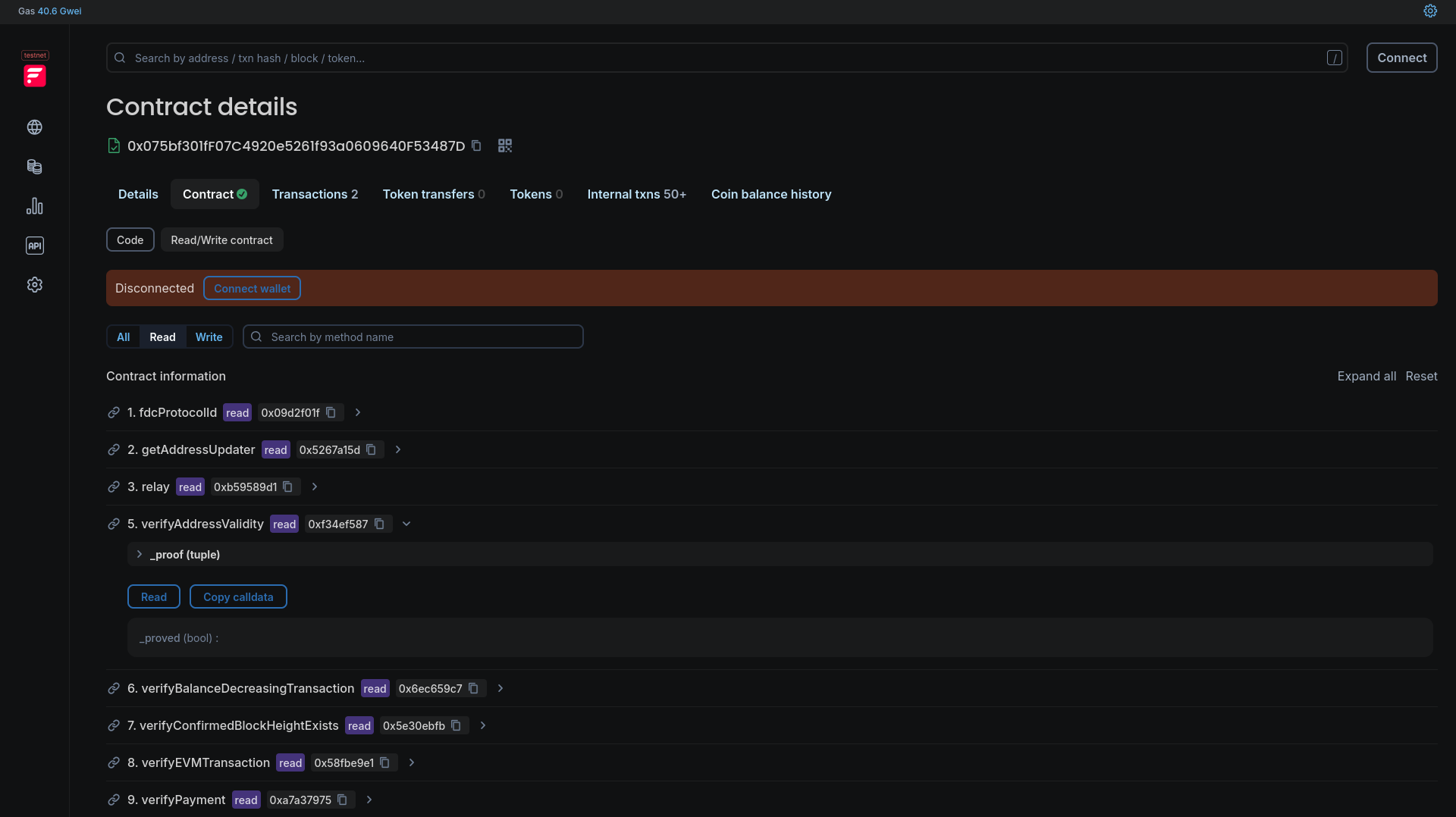
We input the above `Response body` data as parameters to the `verifyAddressValidity` function of the `FdcVerification` contract. When we `Read` the function, we get back `true`, which means that the proof is valid.
Links to FdcVerification contract on all Flare chains.
Links to `FdcVerification` contract on all Flare chains.
- Coston
- [Flare Explorer](https://coston-explorer.flare.network/address/0x57a2db68fb40f6C61342FF4beF283AE185eA8E51)
- Coston2
- [Flare Explorer](https://coston2-explorer.flare.network/address/0x075bf301fF07C4920e5261f93a0609640F53487D)
- Songbird
- [Flare Explorer](https://songbird-explorer.flare.network/address/0xd283afC5A67E2d4Bc700b5B640328Bda22450621)
- Flare
- [Flare Explorer](https://flare-explorer.flare.network/address/0x9394c7A36b3Da8de1b4F27cdD0a554dA4Fa7132d)